Set up your first rule
Install Pick Background, sign in, and create a rule so a Google Meet meeting gets the right virtual background automatically.
Pick Background reads the title of your Google Meet meeting on the preview screen (the one that says Ready to join?) and applies the background you chose for that meeting. Setup takes about a minute.
1. Install and sign in
- Install Pick Background from the Chrome Web Store. It runs in desktop Chrome on Windows, Mac, Linux, and ChromeOS.
- Click the puzzle piece icon in Chrome's toolbar and pin Pick Background so its icon is always visible.
- Click the Pick Background icon and choose Sign in with Google. Any Google account works, including a free @gmail.com account.
2. Create a rule from a meeting
- Open the Google Meet link for the meeting you want a background for. On the preview screen, a small Pick Background badge appears in the bottom right. It can take a few seconds while your camera starts.
- The badge says No rule for this meeting. Click Create a rule.
- The rule is pre-filled with the meeting title. Trim it down to the part that stays the same every time. For "Weekly sync with Acme", use just Acme, so every Acme meeting gets the same background.
- Click Pick a background from Google Meet. Meet's own backgrounds panel opens. Click the background you want. You can also choose no background for meetings where you want your real room.
- Click Save rule.
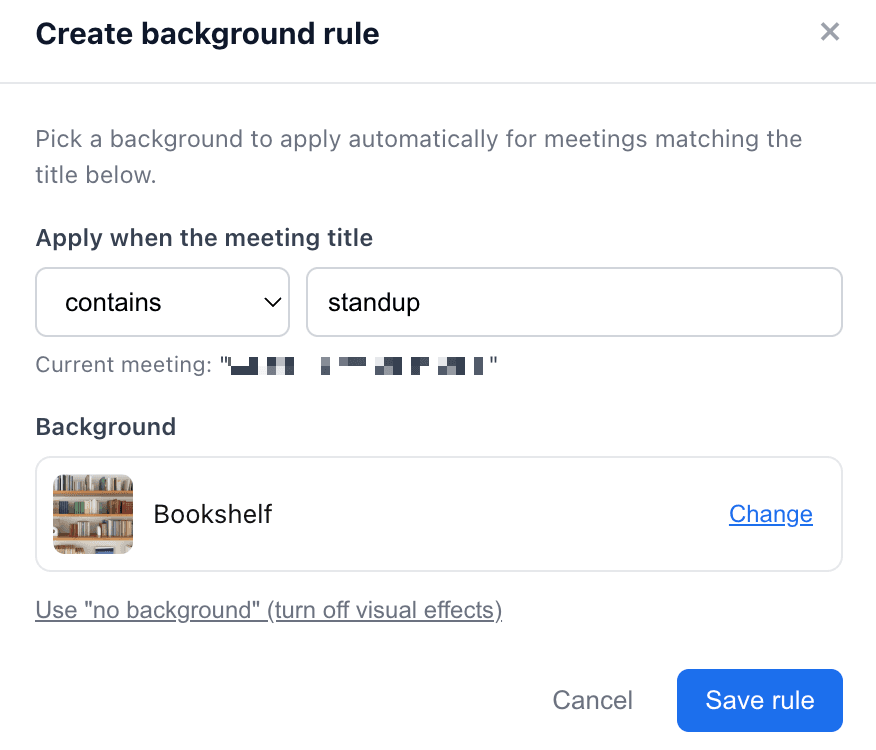
From now on, whenever you open a meeting that matches, Pick Background switches to that background before you join. The badge shows which background it applied and which rule matched.
3. Optional: set a default background
A default background is used for any meeting that doesn't match one of your rules. On the badge, click Pick a default background and choose one the same way. Without a default, Pick Background leaves meetings with no matching rule alone.
Managing your rules
- Click the Pick Background icon in Chrome to see every rule. Delete one with the trash icon.
- To change a rule, delete it and create it again from a matching meeting.
- Rules are saved to your account, so they work on any computer where you sign in to Pick Background.
- The Free plan includes one rule and one default background. Pro and Lifetime include unlimited rules.
Using images you uploaded yourself? Add them to Google Meet first, then pick them in your rule. See Add your own background images to Google Meet.